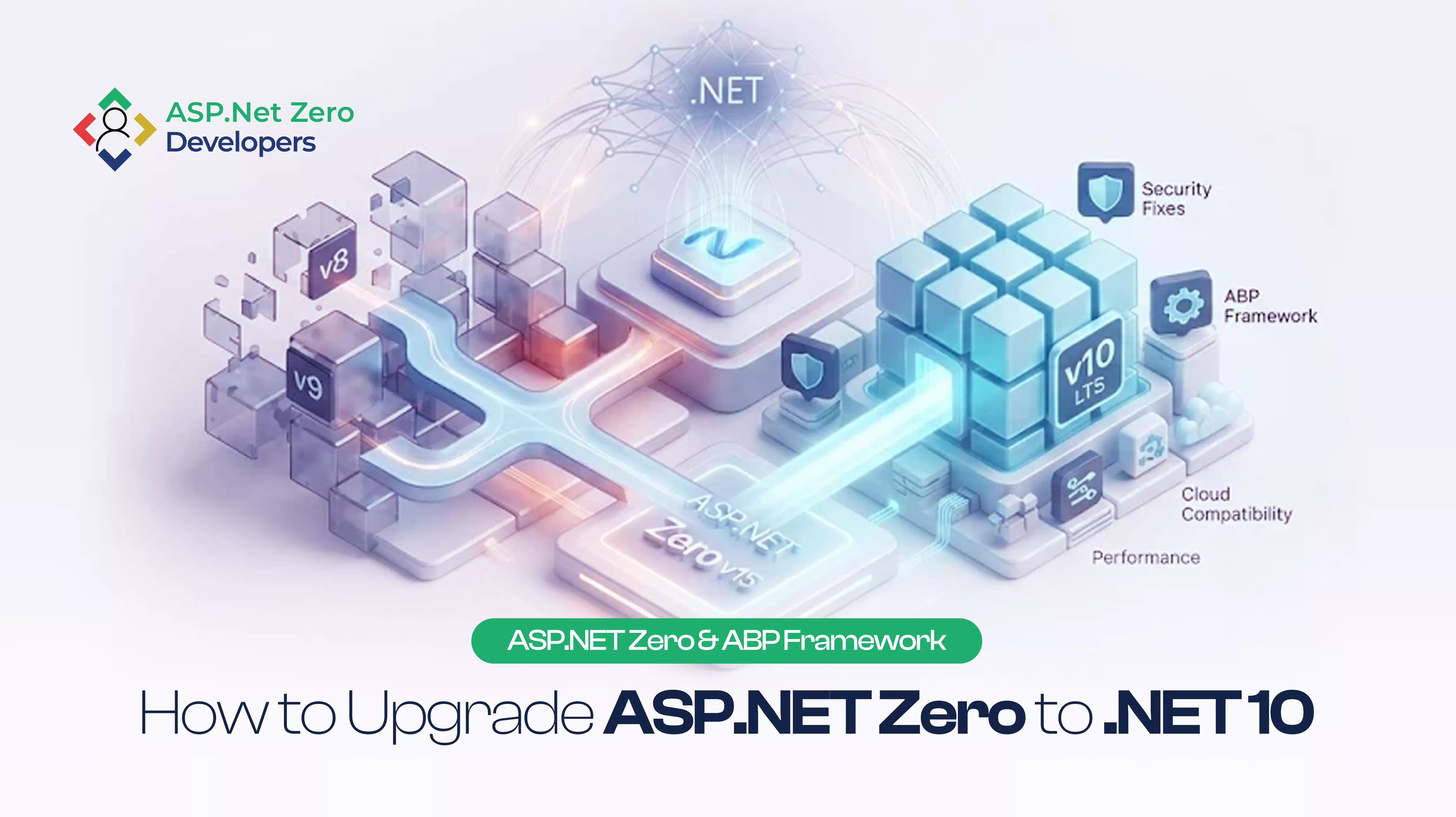
If your application still runs on .NET 8, there’s an important update you shouldn’t ignore: Microsoft ended support for .NET 8 and .NET 9 on November 10, 2026.
Your application won’t suddenly stop working. Users can still log in, business operations can continue, and your existing features may behave exactly as they did before.
But there’s a problem. Microsoft will no longer provide security fixes, servicing updates, or technical support for those runtime versions. That creates a growing maintenance and security risk for applications that remain on them.
For teams running ASP.NET Zero, upgrading isn’t just about changing a project setting from net8.0 to net10.0. You also need to consider the ASP.NET Zero version, ABP framework changes, package dependencies, custom code, database behavior, and frontend compatibility.
This guide explains what changed, why .NET 10 is a practical target for ASP.NET Zero applications, and how to approach the upgrade without disrupting your tenants.
Contents
Key Takeaways
- .NET 8 and .NET 9 reached end of support on November 10, 2026.
- Applications on unsupported runtimes can continue running, but they no longer receive Microsoft security and servicing updates.
- ASP.NET Zero 15.0 introduced support for .NET 10 and ABP 11.0.
- .NET 10 is an LTS release, while .NET 11 is an STS release.
- Framework changes, custom code, package compatibility, and mapping logic often require more attention than the runtime change itself.
- A backend-first migration with proper tenant testing makes the upgrade easier to manage.
What Happens When .NET 8 Reaches End of Support?
When a .NET version reaches end of support, Microsoft stops providing its regular servicing updates and security fixes for that version.
This doesn’t mean your application immediately stops working. However, if a new vulnerability is discovered in an unsupported runtime, you should not expect Microsoft to release a security patch for it.
That creates several problems for businesses:
- Security exposure: Your application no longer receives new runtime security fixes.
- Compliance concerns: Security reviews and customer assessments may flag unsupported software.
- Hosting compatibility: Future hosting environments and third-party dependencies may stop supporting older runtimes.
- Maintenance challenges: Developers have fewer supported options when troubleshooting framework-level problems.
For a SaaS application serving multiple tenants, this isn’t something to leave on the roadmap indefinitely. The application may look healthy today, but staying on an unsupported runtime increases the work and risk involved in maintaining it.
Which ASP.NET Zero Versions Are Affected?
The ASP.NET Zero version matters because different releases target different .NET and ABP framework versions. Here’s a simplified view of the upgrade path:
| ASP.NET Zero version |
Runtime generation |
Position after November 10, 2026 |
| 13.x and earlier |
.NET 8 or older, depending on the solution |
Older runtime may be unsupported |
| 14.x |
.NET 9 |
.NET 9 is unsupported |
| 15.0 and later |
.NET 10 |
Supported LTS runtime |
Always verify the actual target framework of your specific solution rather than relying on the version number alone.
How to Check Your Current .NET Version
Open your solution and search for:
net8.0
You may find the target framework in multiple projects, including:
- Web or API projects
- Application and domain projects
- Entity Framework Core projects
- Test projects
- Database migrator projects
Check every project, not just the main web application. A common upgrade mistake is updating the main application while leaving a test project, worker, or database migrator on an older runtime.
Also check your Dockerfiles and deployment configuration. Updating the project file does not automatically update the runtime image used in production.
Should You Upgrade to .NET 10 or .NET 11?
This is one of the most important decisions when planning a .NET application migration. Both .NET 10 and .NET 11 are currently supported, but they have different release tracks.
| Comparison |
.NET 10 |
.NET 11 |
| Release date |
November 11, 2025 |
November 10, 2026 |
| Release type |
LTS |
STS |
| Support duration |
3 years |
2 years |
| Published end of support |
November 14, 2028 |
November 14, 2028 |
| ASP.NET Zero 15.x target |
Yes |
Not established by the 15.x release information |
Why .NET 10 Is a Practical Choice for ASP.NET Zero
.NET 10 is a Long Term Support release, making it a suitable choice for production applications that need a longer support cycle.
There is also a framework compatibility reason. ASP.NET Zero 15.0 introduced .NET 10 support alongside ABP 11.0. This gives existing ASP.NET Zero teams a defined framework upgrade path instead of requiring them to manage compatibility with a runtime that their current framework version may not officially target.
.NET 11 brings newer capabilities, including C# 15 improvements and updates to ASP.NET Core. But using a newer runtime doesn’t automatically mean your existing ASP.NET Zero solution is ready for it.
Our recommendation: target .NET 10 when moving an older ASP.NET Zero solution to the 15.x framework line, unless your specific framework version officially supports a newer runtime and you’ve verified its dependencies. You can revisit the next LTS upgrade when your framework and application are ready for it.
What Changed in ASP.NET Zero 15.x?
The runtime upgrade is only one part of the migration. ASP.NET Zero 15.x also introduced framework and tooling changes that may affect existing customizations. Here are some important changes from the public release information.
ASP.NET Zero 15.0: .NET 10 and ABP 11.0
Version 15.0 introduced .NET 10 and ABP 11.0. Some important changes include:
- ASP.NET Boilerplate packages moved to private NuGet package distribution.
- Mapperly was introduced as the new mapping approach.
- The Health Checks UI dependency was temporarily removed.
- Multi-tenancy and account-linking behavior received improvements.
The private NuGet change is particularly important for teams maintaining automated builds. Your NuGet configuration and CI/CD credentials may need updating before the solution can restore its dependencies successfully.
ASP.NET Zero 15.2: Mapping and Frontend Changes
The 15.2 release includes several changes worth reviewing:
- Migration from AutoMapper to Mapperly.
- Upgrade to ABP 11.1.
- Angular 21 upgrade.
- Active user session management.
- AI Skills, Rules and Workflows.
If your application uses custom AutoMapper profiles, this is an area that deserves careful attention. Don’t assume that a successful build means every mapping behaves as expected. Review custom mappings and test the resulting objects, especially where business data is transformed.
ASP.NET Zero 15.3: ABP 11.2
The 15.3 release upgraded the framework to ABP 11.2 and included additional improvements, such as rate limiting and external login linking. Review the changes against your authentication, API, and integration customizations before completing the migration.
ASP.NET Zero 15.4: ABP 11.3 and Tooling Changes
The 15.4 release introduced additional changes:
- Upgrade to ABP 11.3.
- A global Power Tools command-line tool.
- Migration from Yarn to pnpm.
- Package upgrades and other improvements.
The move to pnpm is relevant for teams with custom frontend build scripts and CI pipelines. A frontend upgrade should have its own validation process rather than being mixed into every backend change.
Important: These are selected release highlights, not a complete migration checklist. Review the official release notes for every version between your current version and your target.
How to Upgrade an ASP.NET Zero Application to .NET 10
The safest way to approach an ASP.NET Zero upgrade is to break it into smaller steps. Changing the runtime, framework packages, frontend dependencies, and custom features simultaneously makes it difficult to identify the cause of a problem. Here’s a practical sequence.
1. Check Your Current Application and Create a Baseline
Before making changes, understand what you’re upgrading. Start by recording:
- Current ASP.NET Zero version.
- Current .NET target framework.
- ABP framework version.
- Angular or MVC version.
- Custom services and overridden framework classes.
- Third-party NuGet packages.
- Database and migration setup.
Tag your existing release in source control and run your current test suite. If your application has limited automated tests, identify the most important workflows and prepare a small regression checklist. This gives you something to compare against after the upgrade.
2. Download the Target ASP.NET Zero Version
Download the ASP.NET Zero version that supports your intended runtime and frontend configuration. Compare its structure with your existing solution.
Don’t simply replace your old project with the new template. Your existing application may contain custom authorization handlers, services, repositories, and business logic that need to be preserved. Identify which files were customized and treat them as migration points.
For teams moving to ASP.NET Zero 15.x, start with the backend comparison before moving to frontend changes.
3. Update the Runtime and Dependencies
Create a separate upgrade branch. Update the relevant project files to target:
<TargetFramework>net10.0</TargetFramework>
Then align your ABP and Microsoft package versions with the versions required by your target ASP.NET Zero release.
If you’re upgrading to ASP.NET Zero 15.0 or later, also review the private NuGet feed configuration. Check:
NuGet.config- Package source credentials
- CI/CD pipeline secrets
- Docker base images
- Build and deployment scripts
Build the solution after updating the packages. The first build may reveal missing dependencies, obsolete APIs, or incompatible third-party packages. Resolve these issues before moving to the next stage.
4. Review AutoMapper and Mapperly Changes
Mapping is one of the areas that deserves extra attention during this upgrade. If your application uses AutoMapper, identify every custom profile and mapping configuration. Then decide how to handle the transition to Mapperly.
Don’t treat this as a simple package replacement. Check:
- Custom mapping profiles.
- Nested object mappings.
- Nullable properties.
- Collection mappings.
- Conditional mapping logic.
- DTOs with different property names.
- Custom value conversions.
Run tests against the actual mapped output. A mapping issue may not throw an exception. It can simply produce incomplete or incorrect data that appears later in a business workflow.
5. Run Backend Tests and Verify Multi-Tenancy
Once the backend builds successfully, test it before moving to the frontend. Start with the most important application workflows. At a minimum, verify:
- Authentication and login.
- User and role management.
- Permission checks.
- Tenant creation and configuration.
- Tenant-specific data access.
- Background jobs.
- Database migrations.
- Critical business operations.
Test with different account types:
- Host user.
- Tenant administrator.
- Normal tenant user.
Use at least two tenants during your smoke tests. Why? Because multi-tenancy issues don’t always appear as application errors. Sometimes the page loads successfully but displays records belonging to the wrong tenant. That is a much more serious problem than a failed build.
6. Upgrade the Frontend Separately
Once the backend is stable, move to the frontend. If you’re using Angular, review the version changes required by your target ASP.NET Zero release.
For teams moving to 15.2, Angular 21 is one of the relevant framework changes. For 15.4, the migration from Yarn to pnpm also affects frontend dependency management and build pipelines.
Keep frontend changes in a separate pull request or clearly separated migration step. This makes it easier to identify whether a problem comes from the backend, frontend framework, or package manager.
7. Reintroduce and Validate Custom Features
Once the framework and frontend are stable, bring your custom features back into the upgraded solution. Pay particular attention to:
- Custom authorization logic.
- Overridden framework services.
- Third-party integrations.
- Background workers.
- Reporting and export functionality.
- Custom mapping logic.
- Health checks and monitoring.
- CI/CD and deployment configuration.
Don’t assume that every customization will behave exactly as it did before the upgrade. Run regression tests and review the changes with the developers responsible for those modules.
What Usually Takes the Most Time During a .NET Upgrade?
The runtime change itself is often only a small part of the migration. The more challenging work usually comes from the customizations and dependencies built around the original framework version. Here are the areas worth planning for.
Custom framework code
Applications that override framework managers, replace services, or depend on internal framework behavior may need more manual changes.
Mapping configurations
AutoMapper-to-Mapperly migration can require reviewing custom profiles, object conversions, and nested mappings.
Third-party packages
Some external libraries may not support your target runtime or may require a compatible version update.
Build and deployment infrastructure
Private NuGet feeds, Docker images, environment configuration, and CI/CD pipelines can all break even when the application code builds locally.
This is why an upgrade estimate should consider the application’s customization level and test coverage, not only the number of projects in the solution.
For more guidance, read our article on upgrading ASP.NET Zero without breaking your custom code.
What Should You Automate During the Upgrade?
Not every migration task needs to be completed manually. Automation can reduce repetitive work, but important technical decisions should still be reviewed by an experienced developer.
Good candidates for automation:
- Updating target framework references.
- Identifying outdated NuGet packages.
- Running builds and automated tests.
- Checking project files for older target frameworks.
- Running scripted tenant smoke tests.
- Comparing generated code and configuration files.
AI coding assistants can also help explain compiler errors, identify changed APIs, and suggest mechanical code updates. ASP.NET Zero 15.2 includes AI Skills, Rules and Workflows that can provide additional development context. However, don’t blindly accept AI-generated changes to authorization, tenant isolation, database migrations, or mapping logic.
Keep these decisions under human review:
- Choosing the target framework and ASP.NET Zero version.
- Deciding how to migrate customized framework code.
- Reviewing permission and multi-tenancy behavior.
- Approving database migration changes.
- Giving the final production deployment approval.
Automation should make the upgrade easier to manage, not remove accountability from the process.
Frequently Asked Questions
Is .NET 8 still supported?
No. Microsoft ended .NET 8 support on November 10, 2026. Applications can continue running, but they no longer receive Microsoft security fixes and servicing updates.
Is .NET 9 also out of support?
Yes. .NET 9 reached end of support on November 10, 2026, the same date as .NET 8.
Should I upgrade from .NET 8 to .NET 10 or .NET 11?
For an ASP.NET Zero application moving to the 15.x framework line, .NET 10 is the practical target because ASP.NET Zero 15.0 introduced .NET 10 support. .NET 11 is also supported, but verify official ASP.NET Zero compatibility before using it in production.
Which ASP.NET Zero version supports .NET 10?
ASP.NET Zero 15.0 introduced .NET 10 support alongside ABP 11.0. Later 15.x releases include additional framework and tooling updates.
Can I upgrade directly from ASP.NET Zero 13.x to 15.x?
You can plan a direct move to the latest suitable 15.x release, but that doesn’t mean you should ignore the intermediate release changes. Review the release notes between your current version and the target. Pay attention to package distribution, mapping changes, frontend dependencies, and customized framework code.
How long does an ASP.NET Zero upgrade take?
There isn’t one reliable timeline for every application. The effort depends on how much framework code has been customized, how many third-party packages are involved, and how much automated test coverage is available.
Start by checking your current framework version, building against the target dependencies, and identifying the failures. That will provide a more realistic estimate than the application size alone.
Start Planning Your ASP.NET Zero Upgrade
.NET 8 and .NET 9 have reached end of support. If your ASP.NET Zero application still uses either runtime, it’s time to review your upgrade path.
Start with your current target framework, identify the ASP.NET Zero version that supports your migration target, and review the framework changes before modifying your application.
Most importantly, don’t rush through the upgrade just to get a successful build. Your authentication, tenant isolation, permissions, mappings, and business workflows all need to work as expected after the migration.
If your team needs help reviewing an existing solution, our ASP.NET Zero developers can help with code migration and framework upgrades.
The goal isn’t simply to move to a newer .NET version. It’s to keep your application secure, maintainable, and ready for the next stage of development.
Official references:
- Microsoft: .NET 8 and .NET 9 End of Support.
- Microsoft: .NET Support Policy.
- Microsoft: Announcing .NET 11.
- ASP.NET Zero: Introducing ASP.NET Zero v15.
- ASP.NET Zero: Public Change Logs.